In addition to the global (left) menu bar which provides an overview of all your courses and your account, the course menu bar gives you information about a particular course.
You’ll see that the left menu bar has four items:
ANNOUNCEMENTS
From time to time your Tutor or Student Support Manager may leave an Announcement for you: if your Tutor is going to be away on holiday, for example, or if your Student Support Manager wants to give you information.
Any Announcements to do with your course will appear on the Recent Activity page and will also be sent to you according to your notification preferences e.g. either by email or text. But you can also access Announcements by clicking on the Announcements tab in the left hand menu.
MODULES
Clicking on the Modules tab will take you to the lesson plans and resources for your course.
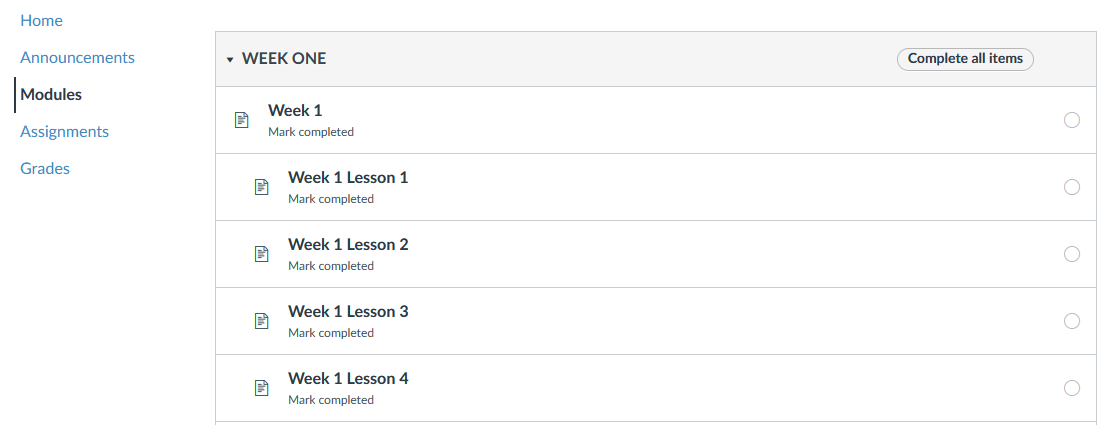
ASSIGNMENTS
Clicking on Assignments in the left menu bar will show you all the assignments on your course.
GRADES
Clicking on Grades in the left menu bar will bring up your grades so far on the course.
Please note: if the course menu bar is not visible, click on the 3 horizontal blue lines in the top left-hand corner as shown below, and the menu will be displayed.
| hidden-course-menu-1.png | hidden-course-menu-2.png |
NAVIGATION
At the top of the Welcome page you will find a number of icons.

To begin your course, look through the different sections, and then begin with Part 1. In Part 1 you will find all of the lesson plans you need for the first part of the course. Look out for the General Resources section in each Part as this will contain important additional information and links for you to use.