Students can submit video assignments in two convenient ways:
- Record a video directly within Canvas using Record Media
- Record a video separately and upload it to Canvas with Upload Media
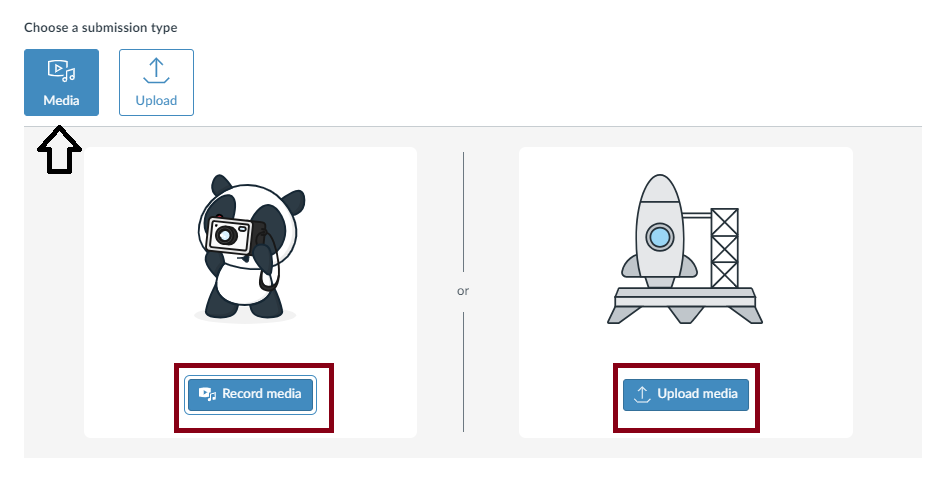
Please note that recording directly in Canvas may limit your ability to download a copy of your submission at the end of the course. If you want to keep a copy of your videos for your records, we recommend uploading them instead. This way, you will retain a permanent digital copy that can be accessed at any time, even after course completion.
RECORD MEDIA
To initiate the recording process within an Assignment:
- Click on the Record Media option.
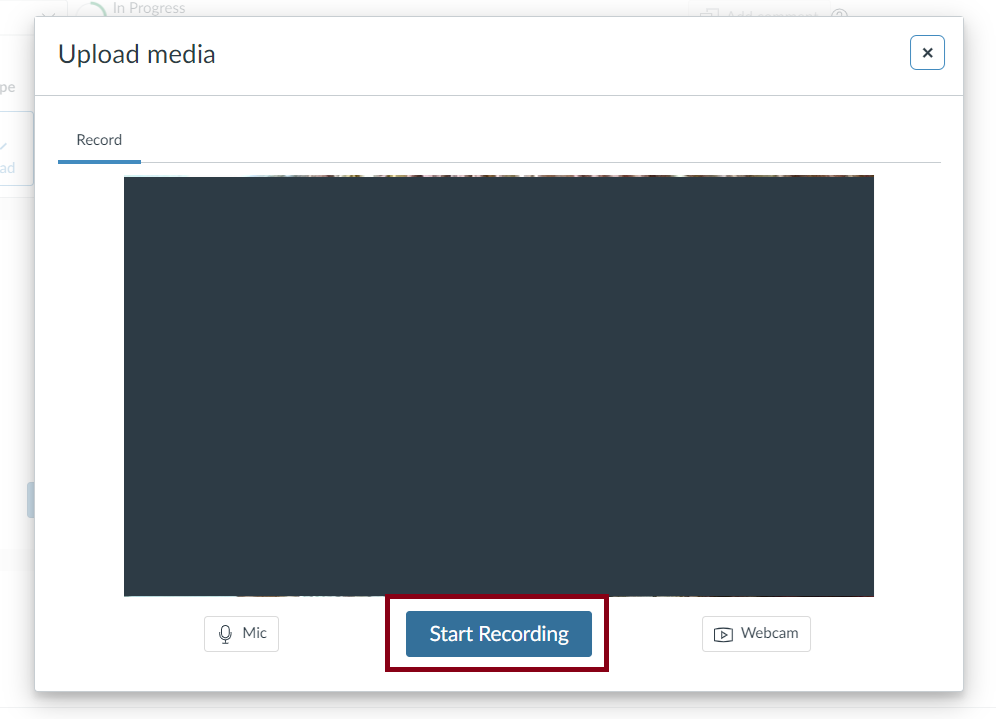
- The Upload Media window will appear, offering the option to Start Recording.
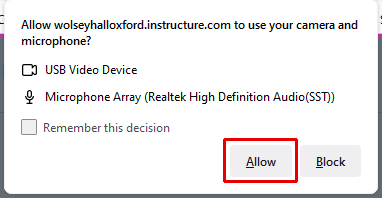
- Canvas will request access to your microphone and webcam, prompting a browser popup (similar to the one below). Please select 'Allow' to grant permission.
- Once you've allowed access to your mic and camera, click Start Recording to begin your assignment. You can adjust your mic and camera settings using the icons on the sides.
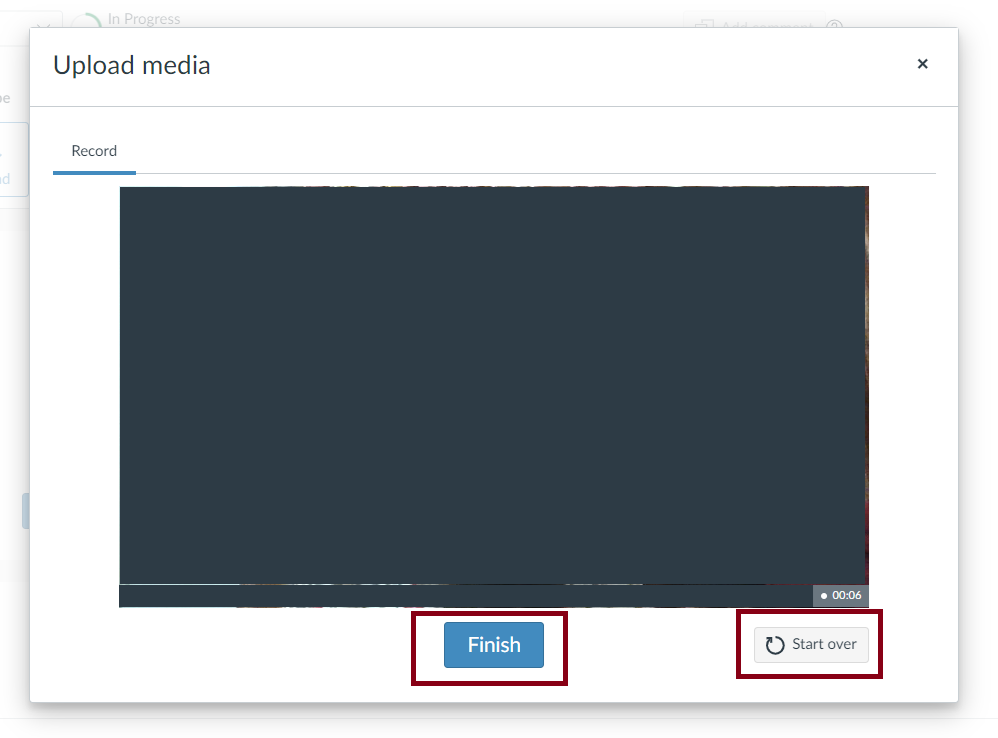
- Upon completion of your recording, click 'Finish' to submit. If you wish to re-record, click 'Start Over' to recommence the process.
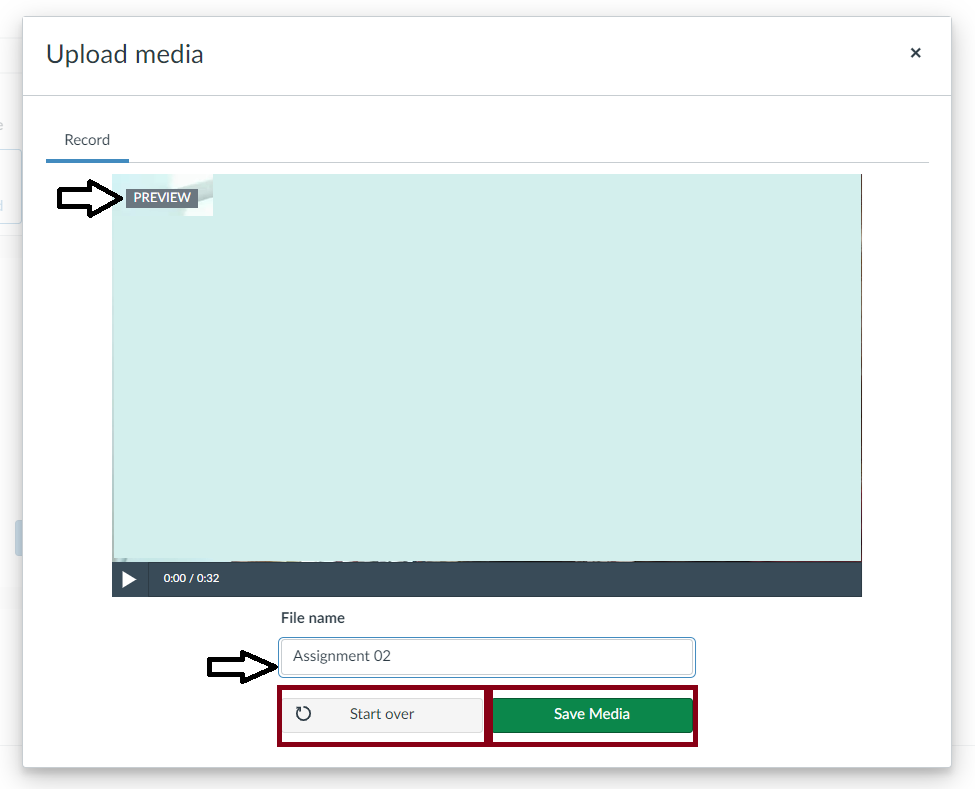
- Enter a File name to save your recording, then click Save Media. You also have the option to preview your recording. If you're dissatisfied, you can re-record by clicking Start Over atany time.
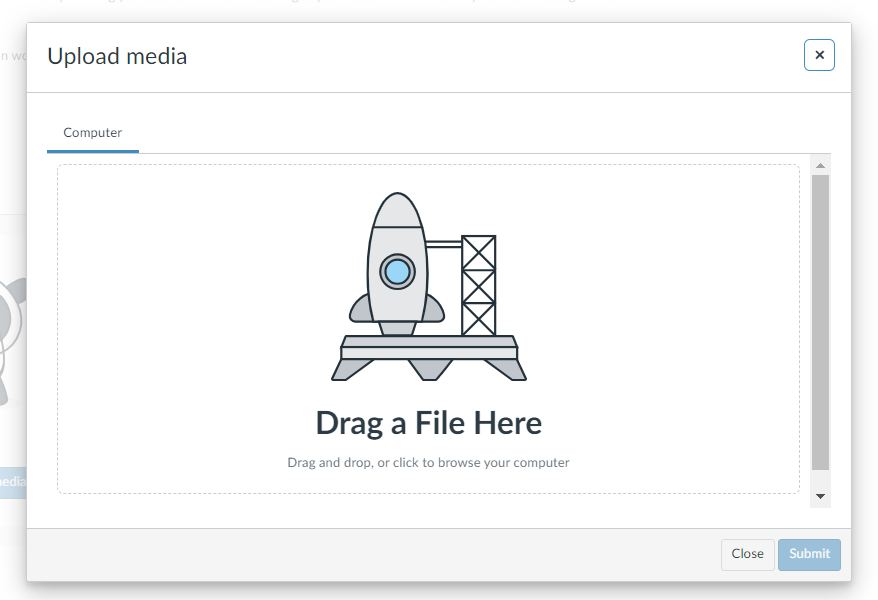
UPLOAD MEDIA
To upload a file, select Upload Media and choose the file from your computer. Please note that the file size limit is 500MB. For a list of accepted media file types in Canvas, refer to the table at the bottom of this page.
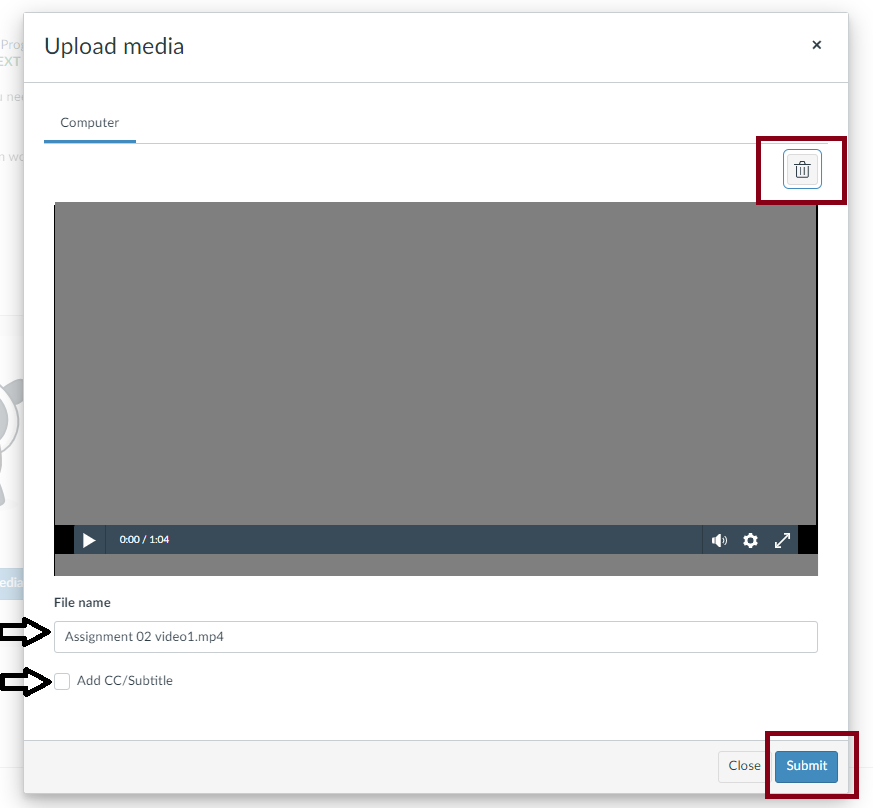
After selecting a file, the File name will be displayed in the window for confirmation. You can add subtitles or closed captions (CC) to the file as needed, or remove it and upload a different file. Once you've finalised your selection, click the Submit button to upload the file and complete the process.
PLEASE NOTE
Only one video file can be uploaded per assignment. If you have multiple videos, you'll need to merge them into a single file before submitting. To help with this, HandBrake is a free and open-source video compression software that you can use to combine and optimize your videos.
For users of Apple devices, if you have used the Notes app to scan your assignment, please be aware that since the release of iOS 18, PDFs created using this app are no longer being saved at A4 size. If you have been asked to reformat an assignment recently which has been created via your iOS device, this is likely to be the reason.
We recommend using Microsoft Office Lens or CamScanner to create PDFs on Apple devices. Both these apps output A4 size pages by default and are simple to use.
USING THE CANVAS APP
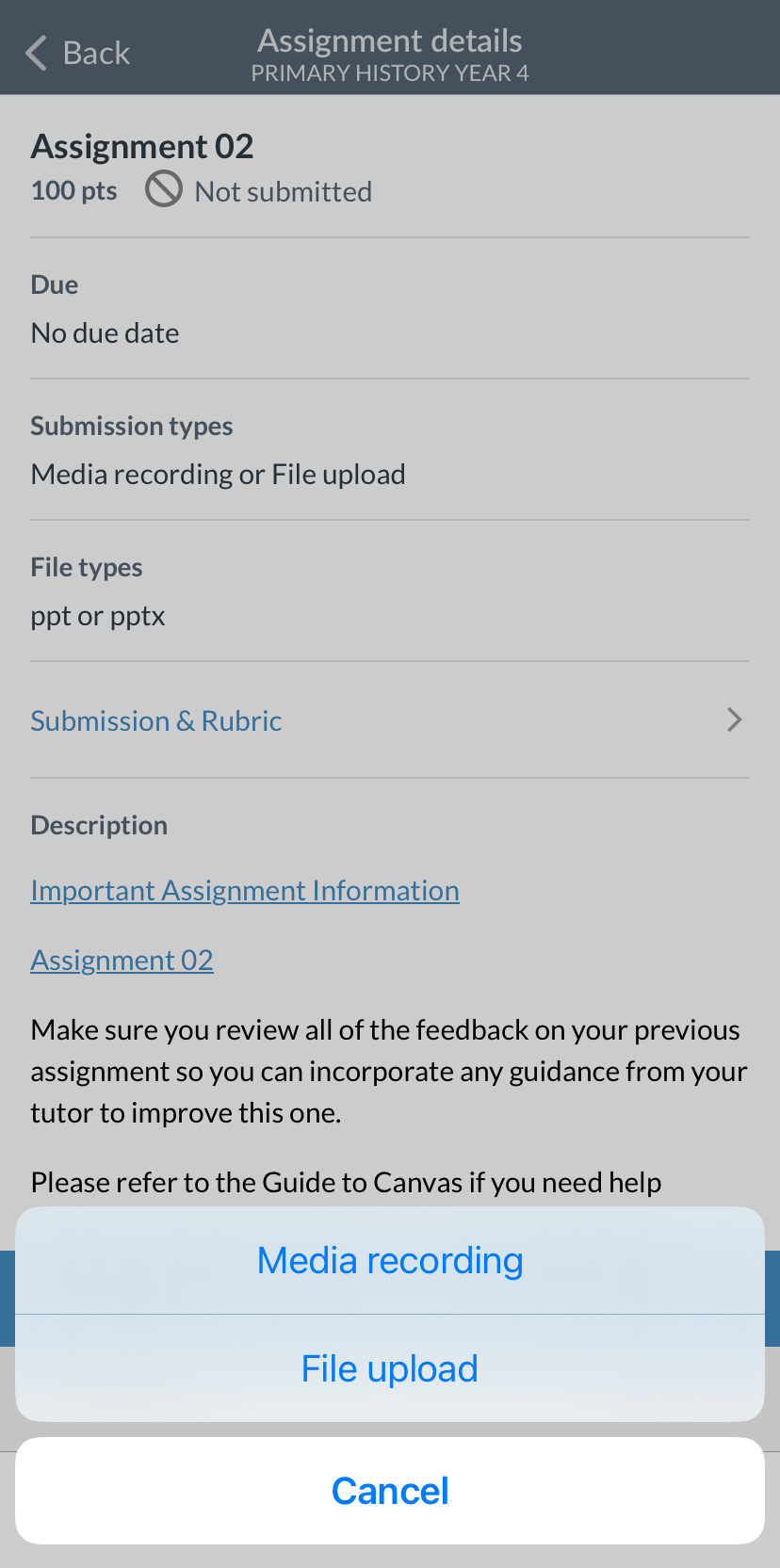
If you are using the Canvas app on a mobile device, please follow the steps shown in the screenshots below.
- Start by clicking the 'Submit Assignment' button
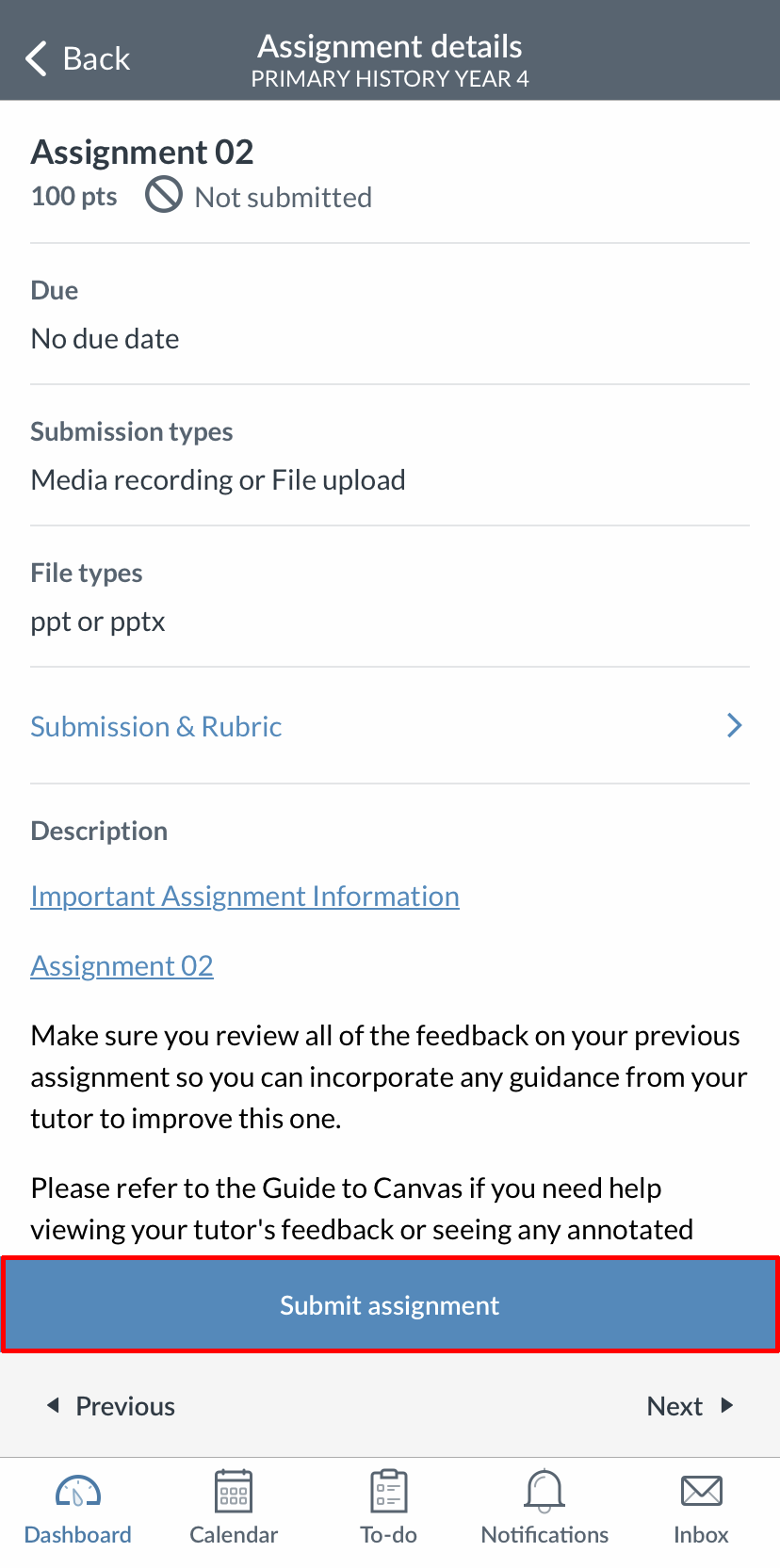
- You will then be presented with two choices: Media recording or File upload.
- Select your preferred option to record or upload your file.
LIST OF ACCEPTED MEDIA FILE TYPES IN CANVAS
| Supported Formats | Video/Audio | Format |
|---|---|---|
| FLV | Video | Flash Video |
| ASF | Video | Windows Media |
| QT | Video | Apple QuickTime |
| MOV | Video | Apple QuickTime |
| MPG | Video | Digital Video Format |
| MPEG | Video | Digital Video Format |
| AVI | Video | Digital Video Format |
| M4V | Video | Digital Video Format |
| WMV | Video | Windows Media |
| MP4 | Video | Digital Video Format |
| 3GP | Video | Multimedia Mobile Format |
| MP3 | Audio | Digital Audio Format |
| WMA | Audio | Windows Media Audio |
| MWV | Audio | Windows Media |
BEFORE UPLOADING FROM YOUR COMPUTER OR MOBILE DEVICE
Before submitting your work, please confirm the following:
- Only one file is being uploaded/submitted.
- File size: Less than 500MB (if uploading from a computer or mobile device).
Failure to meet the above requirements may result in upload issues to Canvas, making it unsuitable for grading. In such cases, you will be required to reformat and resubmit your work, which may delay feedback
Citations
[1] handbrake.fr