Occasionally, you will be expected to search for relevant information on the internet. This page will give you some helpful tips on how to go about searching and choosing good quality websites.

You don’t need to research all your work on the internet
Many students fall into the trap of using the internet to help them with any work on their course or in their assignment. While this strategy can work, it often leads to a lot of time wasted on searching for information that is already accessible to you on your course, in your coursebook or in the resources you have been given. In addition, the information you access may not be at the appropriate level you are studying or may not use suitable language. However, if you have been asked on your course to use the internet, then please go ahead following the tips below.
Don’t just open the first webpage on the search list
Be aware that paid advertisements can appear at the top of the listings for your search because companies have paid for them. The sites listed at the top of your search results may have very good Search Engine Optimization (SEO), but it doesn't necessarily mean that they have the best content. Look for trusted sites such as Encyclopaedia Britannica, National Geographic, the British Library, the British Council, etc. or ones that the course or your tutor has suggested.
You can search ‘within’ a search result
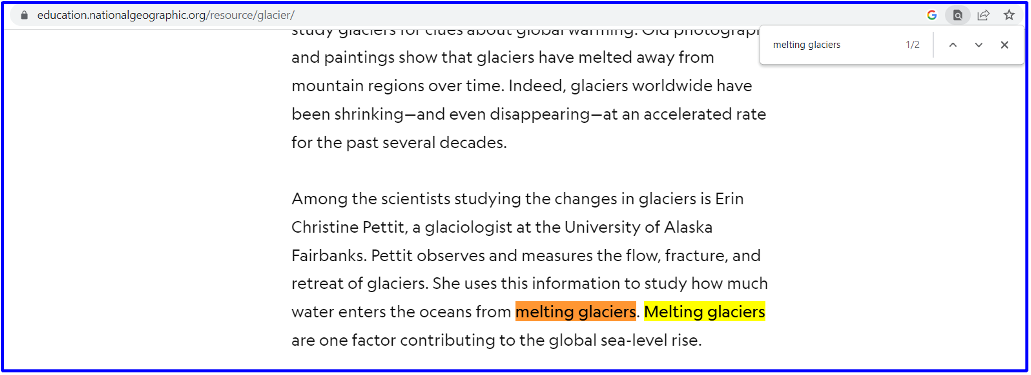
Did you know that you can search within a webpage? Don’t just skim through a webpage or worse, just read the short description that appears in the search results. Instead, you can search for specific words or phrases. If you use ‘Control F’ (Windows) or ‘Command F’ (Mac), this will bring up a search box at the top right of the webpage. You can search for a word or phrase by typing it in the box, as shown below:
Google isn’t the only search engine
Most of you may just use Google to search, but some of you may use Microsoft Bing. Search engines like these record data about your searches to build up a profile and they use that data to personalise advertisements aimed at what they think you might like.
You could use a search engine like DuckDuckGo that doesn’t record your searches. Every time you turn up at the DuckDuckGo portal, you're seen as a new user. You could go incognito or private on your browser to get the same effect. Ecosia is another alternative search engine you can use on Chrome. Much like DuckDuckGo, they don't create a profile of your searches and they say they use all their profits for climate action, with at least 80% financing tree-planting projects around the world.


Play around with the words and phrases you use for your search
When thinking about what to type in your search, it can be helpful to think about the words that someone else might use to describe your topic, question or problem. Try using those terms instead of your own. In the case of searches for your Wolsey Hall tasks, use keywords from the course or coursebook. Learn more about this strategy in this short video (it is quite old and the Google searches look a bit different, but it makes valuable points).
WATCH - Google Search Query Formation (YouTube)
Another thing you can do is put your search term within quotation marks such as ‘Glacial valley’. This makes the search engine search for that phrase only and not glacial or valley.
Search Google books and newspapers
Books often contain good information and if you don’t have any suitable books, you can use Google Books which allows you to search through millions of books online. Try searching using the words Glacial Valley to see what you find.
Citations
[1] www.youtube.com [2] www.youtube.com [3] books.google.com