
Assignments are a key part of your course at Wolsey Hall. They are there to check how your student is progressing. They are also an opportunity for your student's tutor to provide valuable feedback.
Assignment formats vary throughout the courses, but information about this is specified clearly on the assignment task information. It’s very important that assignments are submitted in a way that makes it easy for your tutor to mark and provide feedback.
Here is an example from Year 3 English. This states at the top of the assignment that your student needs to write on the assignment paper.
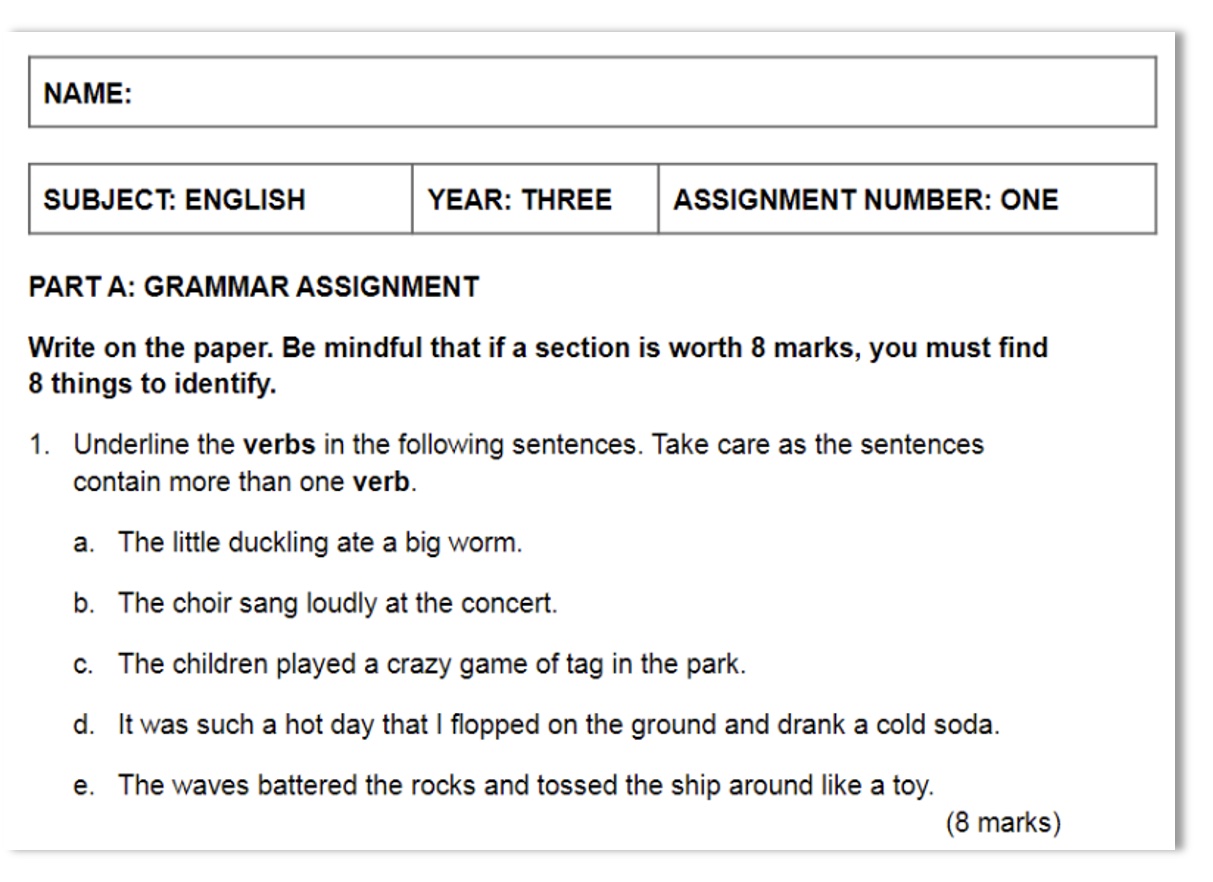
Paper Assignments
Primary assignments often need to be completed on paper. It is helpful if you can have access to a printer.
Your student may need to write on lined paper or on the assignment document itself. Then the completed assignment needs to be scanned using a scanner or an app on your mobile phone.
Each assignment needs to be:
- written clearly and neatly in black ink (or with a digital stylus)
- the right way up.
- scanned in A4 size and smudge-free - HELP - Fixing page size.
It is important to ensure that your tutor can read your student's assignment easily. If it is the wrong size or difficult to read then you will have to resubmit it.
Using an app to scan your assignments
If you do not have a scanner, you can use your smartphone or tablet to take a photo of the assignment and convert it to PDF.
The following free apps, Microsoft Lens and Camcsanner will allow you to take several photos and add pages to form a single PDF. Both apps will work with Android or an iPhone.
For both apps, it is recommended you use the document (Microsoft Lens) or docs (Camscanner) picture option to take your picture. Once you have taken a picture of the page make sure you use the filter options to get a clear, bright picture.
Camscanner
Camscanner defaults to A4 paper size for PDFs which is what you want.
Watch this video for guidance if you have an Android device:
WATCH - Camscanner Tutorial (YouTube)
Watch this video for guidance if you have an Apple device:
WATCH - How To Install and Use CamScanner on iOS (YouTube)
Microsoft Lens
This video shows you how to use Office Lens
WATCH - Scanning tutorial: scan a PDF from your phone with Office Lens (YouTube)
Microsoft Lens lets you edit the pages before you save them. You can adjust the borders of each image after you capture it, or you can capture images one after the other and edit them later. You can also reorder the pages before you save them - tap ‘Reorder’. You’ll be shown all captured images in one view and you can then drag them in the order you want.
Merging several PDFs
All assignments need to be submitted as a single PDF on Canvas.
You can use the following free websites to merge PDF documents:
This video shows you how to use the above website.
WATCH - How to merge pdf files together? | Merging Pdf Files | ILovePdf.Com (YouTube)
Rotating one or more pages of a PDF
If you need to rotate all or some of the pages of the PDF because they are upside down then you can use this free online app:
This video shows you how to use this app.
WATCH - How to Rotate and Save a PDF, with Smallpdf (YouTube)
Wolsey Hall Primary Parent's Guide To Canvas
This guide offers really useful instructions about using Canvas.
Here are some useful book marks:
- Formatting and scanning paper assignments
- Submitting video assignments to your child's tutor
| Back.png | Home.png | Next circle.png |
Citations
[1] www.youtube.com [2] www.youtube.com [3] www.youtube.com [4] www.youtube.com [5] www.youtube.com [6] www.youtube.com [7] www.youtube.com [8] www.youtube.com [9] www.youtube.com [10] www.youtube.com [11] www.sodapdf.com [12] www.ilovepdf.com [13] smallpdf.com